
Introduction
In the past few years I’ve been working daily with Unreal Engine C++ Editor and Tools development, so I thought about sharing some code snippets about it.
For now I won’t cover those customizations or extensions which will require a long-format post (e.g. custom Editors), but I’ll try to share those which I consider easy wins, and which can help customize the experience for you and your team!
Quickly setting selected Level as the project Startup Level
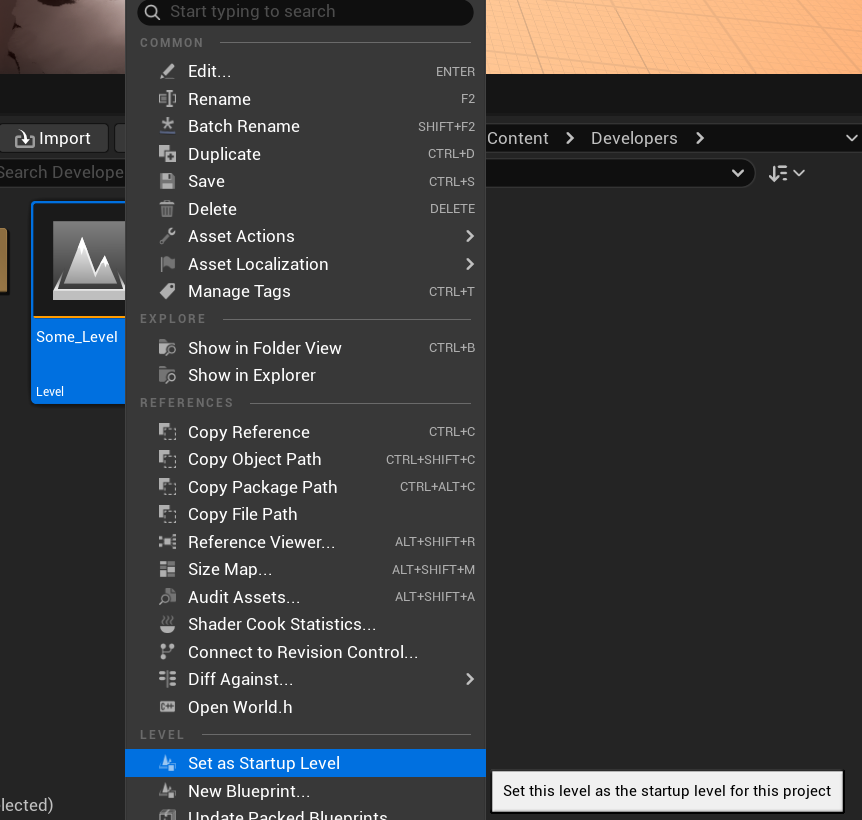
I wanted to add this functionality for a while, so here it is: right-click on a Level asset, and quickly set it as the current project startup level!
Since the editor uses UToolMenus to handle things like toolbars and context menus, we’re going to be using the Tool Menu system to extend our Level Asset actions, and add the entry which will allow us to quickly update our startup level setting.
Our plan:
- Find out which menu we are going to customize
- Setup the code to extend it
- Map the action we want
Finding the menu and section
While we got a few ways to look into Unreal source code to find out how to reach a menu, there is a nice Editor tool we can activate with a console command. This tool exposes a few functionalities, but what we’re interested in is the fact that it will display the string we can use to reach menus from C++ in order to customize them.
You can enable/disable the tool by typing ToolMenus.Edit 1 or 0:

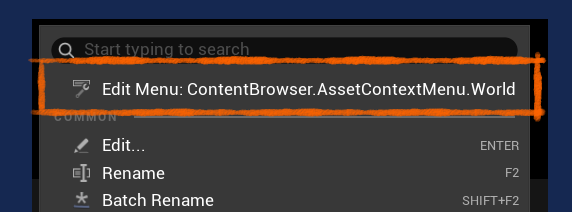
Now, if we right-click a Level asset in the Content Browser, which is the place where we want to add our new entry, we will see an additional item at the top of the context menu. That’s the string we can use to edit this menu:ContentBrowser.AssetContextMenu.World.
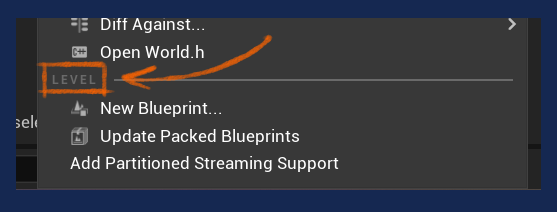
Also, notice the existing Level section. Take note of that too – we are going to place our entry right there, since it’s a Level asset action!
Adding the entry (finally!)
Let’s first create the code which will add the new custom entry to the menu. Here’s the summary of what the snippet below does:
- Retrieve the
ContentBrowser.AssetContextMenu.Worldmenu, and itsLevelsection, in order to extend it. - Use the AddDynamicEntry method: this will have the system evaluate this code every time the menu is opened, and not only at setup time. This allows us to only add and show our entry when a single Level asset is selected.
- Create the action for the entry: in this case we only choose its execution code, but we could specify if the entry is enabled/visible/checked.
- Add the entry to the currently edited section, specifying things like its label, icon, tooltip and action.
void FSomeModule::RegisterToolMenuExtensions()
{
	// Retrieve the context menu
	UToolMenu* const WorldAssetMenu = UToolMenus::Get()->ExtendMenu("ContentBrowser.AssetContextMenu.World");
	if (!WorldAssetMenu)
	{
		return;
	}

	// Get the Level section
	FToolMenuSection& LevelSection = WorldAssetMenu->FindOrAddSection("Level");
	LevelSection.AddDynamicEntry("SetAsStartupLevel", FNewToolMenuSectionDelegate::CreateLambda([](FToolMenuSection& InSection)
	{
		// Make sure the context is properly setup
		const UContentBrowserAssetContextMenuContext* const AssetMenuContext = InSection.FindContext<UContentBrowserAssetContextMenuContext>();
		if (!AssetMenuContext)
		{
			return;
		}

		// Make sure only 1 asset is selected
		if (AssetMenuContext->SelectedAssets.Num() != 1)
		{
			return;
		}

		// Retrieve that asset, and make sure it's a Level asset (UWorld type)
		const FAssetData& WorldAsset = AssetMenuContext->SelectedAssets[0];
		if (!WorldAsset.IsInstanceOf<UWorld>())
		{
			return;
		}

		// Setup the action
		FToolUIAction SetStartupLevelAction;
		SetStartupLevelAction.ExecuteAction.BindLambda([WorldAsset](const FToolMenuContext& MenuContext)
		{
			if (UGameMapsSettings* const Settings = GetMutableDefault<UGameMapsSettings>())
			{
				Settings->EditorStartupMap = WorldAsset.PackageName.ToString();
				Settings->TryUpdateDefaultConfigFile();
				Settings->SaveConfig();

				// Make sure to reload, so the change is shown right away in the settings
				Settings->ReloadConfig();

				// Show a notification for 3 seconds - always good to have some feedback!
				FFormatNamedArguments Args;
				Args.Add(TEXT("LevelAssetName"), FText::FromName(WorldAsset.AssetName));
				FNotificationInfo Info(
					FText::Format(LOCTEXT("", "{LevelAssetName} is now the startup level."), Args));
				Info.ExpireDuration = 3.0f;
				FSlateNotificationManager::Get().AddNotification(Info);
			}
		});

		// Actually add the entry to the Level section
		InSection.AddMenuEntry(
			"SetAsStartupLevel",
			LOCTEXT("SetAsStartupLevelLabel", "Set as Startup Level"),
			LOCTEXT("SetAsStartupLevelTooltip", "Set this level as the startup level for this project"),
			FSlateIcon(FAppStyle::GetAppStyleSetName(), "ClassIcon.LevelInstance"),
			SetStartupLevelAction);
	}));
}
Don’t forget to actually call this method from your Module StartupModule method (guilty!). This can be done in other places of course, but that’s the most straightforward place, and also common practice around the Engine.
void FSomeModule::StartupModule()
{
	RegisterToolMenuExtensions();
}
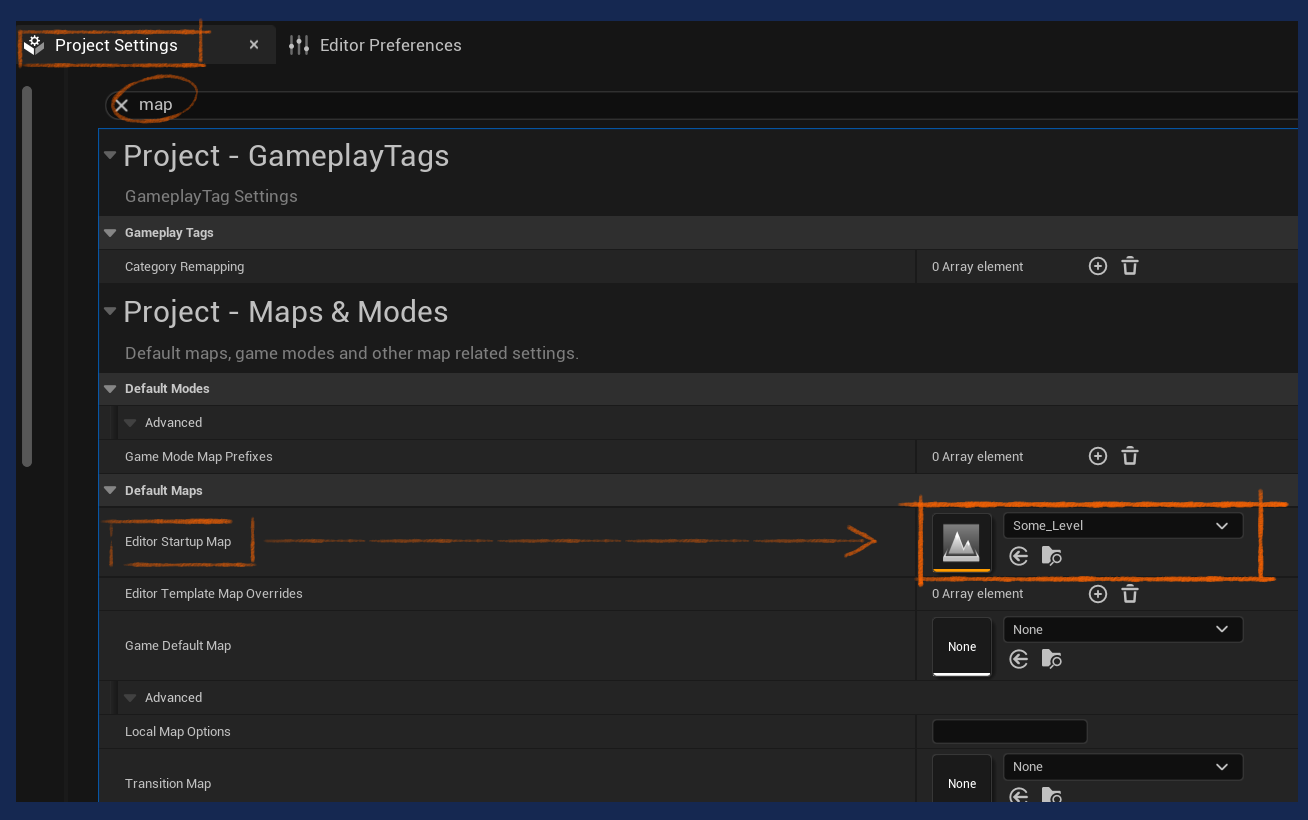
Here it is!
The very same approach can be used to create other types of entries, and also to other places. As mentioned, Tool Menus are used for toolbars too, so for example we could edit the Viewport Toolbar sections of a specific Editor.